

Founder notes
How to Route Signed Engagement Letters to the Right Client Record
By Djordje (George) Milićević · Thinking Mans Systems
Published
Quick take
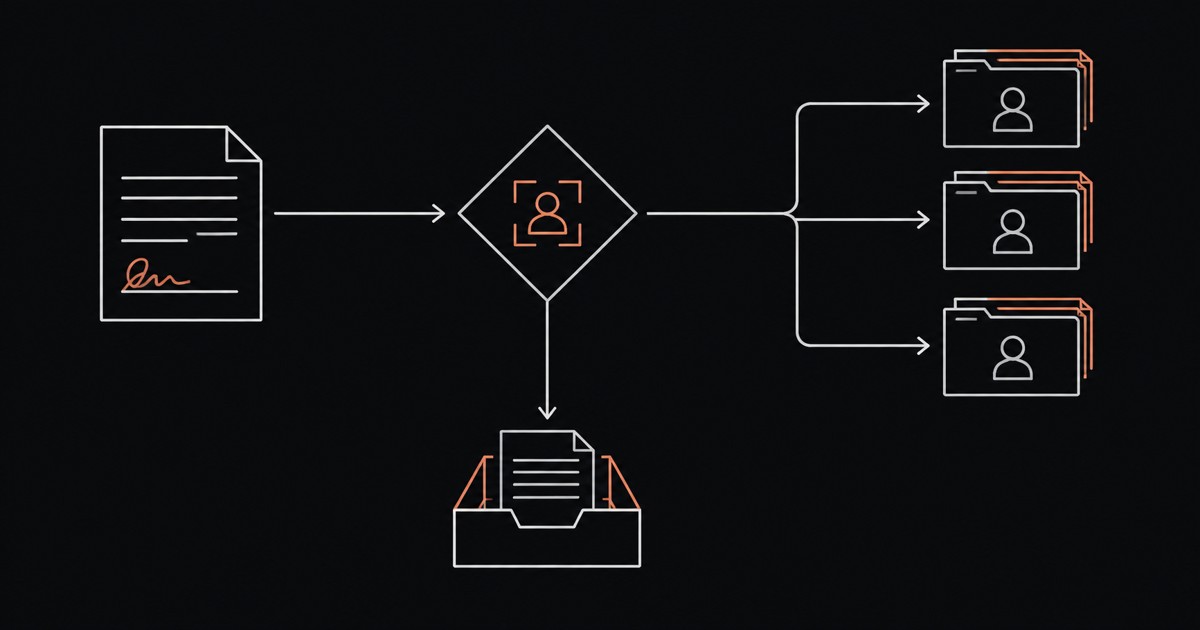
Route a signed engagement letter using a client and engagement identifier captured before it is sent, not a name guessed from the PDF. Verify the signing event, confirm the required envelope is complete, and attach the document only when one authorized destination matches. Missing, conflicting, or uncertain matches belong in a named review queue, not the closest-looking client folder.
Illustrative scenario: A US accounting firm handles two businesses with similar names. The same owner signs both engagement letters from one email address. An assistant sees “completed,” downloads a PDF, and attaches it to the first matching contact. The document arrived, but the wrong entity now appears ready for work. This is a fictional example, not a client result.
A law firm can face the same problem when one client has several matters. The signer, the legal client, and the destination matter are different identities. A reliable handoff preserves those distinctions instead of treating the signature as an instruction to choose a folder.
Which identifiers should travel with the letter?
Start at creation. Store the signing account, envelope ID, internal client ID, engagement or matter ID, and the expected document version together. The destination should be selected by an authorized person or an already validated record before sending. A display name helps a reviewer read the record; it should not be the routing key.
Docusign’s envelope custom-fields reference (opens in a new tab) describes fields for recording and tracking information about an envelope, including text and list fields that recipients do not see. Those fields can carry a reference, but their presence does not prove that the reference is correct. Keep a trusted internal envelope-to-engagement mapping and compare the returned information with it.
Use opaque internal identifiers rather than tax identifiers or sensitive matter descriptions. Do not rely on a file name, a company-name substring, or an AI reading of the signature page. A plausible match is not an approved match. If the signing tool was used manually without a saved mapping, the first filing should be a human decision.
For earlier onboarding boundaries, see our client intake automation work. Collecting the right destination before sending is usually simpler than recovering it from a signed attachment.
Does a signature notification mean the engagement is complete?
Not necessarily. One recipient signing is different from every required recipient completing the envelope. Docusign’s envelope status definitions (opens in a new tab) distinguish the temporary signed state from completed, which means the envelope has been completed by all recipients. Use the status of the intended envelope, not a subject line saying someone signed.
Before filing, check the provider account, envelope ID, expected version, required completion state, and destination mapping. A declined or voided envelope should not enter the completed-document path. If a revised letter replaced an earlier one, keep both histories and require the approved version; do not overwrite the old PDF to make the timeline look tidy.
Document completion also does not decide professional acceptance. For a law firm, conflict and engagement approval remain the firm’s decisions. For an accounting firm, scope approval and any onboarding prerequisites remain separate. The automation files evidence; it should not invent permission to start work.
How should the workflow decide where to file it?
Use an exact-match gate with three outcomes: one valid destination, no valid destination, or conflicting destinations. Only the first can proceed automatically. Check that the destination still exists, belongs to the expected entity, accepts the document category, and is available to the authorized integration account.
| Incoming condition | Required check | Next action | Owner |
|---|---|---|---|
| One exact engagement match | Client, version, and access agree | File and verify the attachment | Client operations |
| Missing engagement reference | Recover the original send record | Hold without guessing | Intake coordinator |
| Two candidate matters | Confirm intended matter with sender | Approve one mapping manually | Matter coordinator |
| Destination merged or closed | Check surviving record and policy | Review before reassignment | Records owner |
| Repeated completion event | Look for the existing attachment | Reuse recorded outcome | Workflow owner |
The owner labels above are illustrative roles. In a small firm, assign an actual person and a backup. “Operations” is not sufficient if nobody checks that queue. A reviewer should see the intended client, the envelope reference, the conflicting fact, and the permitted action without opening documents for unrelated clients.
How do you handle duplicate events and failed attachment writes?
Docusign Connect webhook documentation (opens in a new tab) explains event notifications and retries with increasing delays after failed delivery. Receiving an event again should not produce another copy of the signed letter or start onboarding twice.
Keep a processing record keyed by provider account, envelope, and document version. Store received, validated, filing pending, filed and verified, or review required. Record the target attachment reference after success. Prevent two workers from claiming the same handoff at once; a check followed by an unprotected create can still race.
A timeout after an upload is not proof that nothing was saved. Mark the outcome uncertain and look for the attachment through the saved source reference or the destination tool’s supported lookup. If the target supports a documented duplicate-prevention key, use it. If it does not, reconcile before another upload. Do not assume every connector offers the same guarantee.
Retry a confirmed temporary failure with bounded backoff according to the target provider’s guidance. A missing record, denied access, or conflicting mapping requires correction. After the retry limit or an uncertain outcome, notify the records owner and keep the item open. Our note on uncertain writes and duplicate protection explores that distinction for invoices; here, the protected object is a signed document.
What protects confidential documents during the handoff?
A publicly reachable webhook listener must verify its caller before trusting an event. Docusign’s HMAC guidance for Connect messages (opens in a new tab) describes checking authenticity and integrity with a signature over the received body. That check protects the notification; it does not authorize access to every client folder or prove a client reference is correct.
Restrict the integration to the records and document actions it needs. Keep credentials out of messages and logs. Put a protected link in an exception alert rather than the full letter, and require normal record access to open it. Review retention, audit logging, and temporary file cleanup with the firm’s responsible person before launch.
The IRS Protect Your Clients; Protect Yourself guidance (opens in a new tab) says professional tax preparers must create and enact security plans to protect client data. Filing automation belongs inside that plan, not outside it. Law firms should likewise have their responsible professional approve confidentiality and access requirements; this workflow description is not legal or compliance advice.
What should the exception owner check before closing a case?
The intake or matter coordinator should verify the destination, record why the original match failed, approve any corrected mapping, and read back the final attachment from the correct record. Record who approved the decision and when. “Webhook received” and “upload attempted” are not finished states.
Test two clients sharing one signer, two matters under one client, a merged record, an expired integration credential, repeated notifications, and a timeout after a successful attachment. Confirm that each bad match stops before filing and that the reviewer can resolve it without bypassing access controls.
Finally, reconcile completed envelopes against verified filing records on a defined schedule. An alert only helps after the system notices a failure. Reconciliation finds events that never arrived. The initial scope can stay small: one letter type, one signing account, one destination system, and one accountable owner.
Common questions
- Can we match a signed letter using the signer’s email address?
- Use email as a supporting check, not the sole destination key. One contact can represent multiple entities or matters, and shared inboxes are common. Require the stored client and engagement identifiers to agree with one authorized destination; otherwise pause for review.
- Should a signed engagement automatically open the matter or start billing?
- Only if the firm has explicitly approved those downstream rules and their prerequisites are checked separately. Filing a completed document does not establish that conflict review, onboarding, payment, or partner approval is complete.
- What should happen when the client record was merged after the letter was sent?
- Pause the attachment and have the records owner verify the surviving client and the correct engagement or matter. Record the approved replacement mapping without changing the signed document. Replay the pending handoff only after checking that it was not already filed.
Want to review one signed-document handoff?
Bring the path from sending a letter to filing it, one redacted exception, and the person who resolves it today. We can look at the matching boundary before deciding whether your existing tools need a small change or a more explicit handoff.
Let’s work through it