

Founder notes
Why Invoices Get Stuck Between Your CRM and QuickBooks
By Djordje (George) Milićević · Thinking Mans Systems
Published
Quick take
Invoices get stuck when fields do not match, a customer or item is missing or inactive, a retry risks a duplicate, authorization expires, a rate limit blocks the request, or nobody owns a failed write. Record the failure and preserve the source record, then decide whether to retry, correct the data, or route it to a named person before it becomes a customer or accounting problem. If the response is missing, confirm whether QuickBooks accepted the invoice before sending another create request.
Illustrative scenario: A 10-van plumbing company marks a job complete in its CRM. The office expects an invoice in QuickBooks, but none appears. The job looks finished to dispatch. The bookkeeper has nothing to send. Nobody knows whether the request failed or the reply went missing.
I would start with that one job, not replace the connector. Find its source record and the last attempted write. A missing invoice is a symptom. The response, or the absence of one, tells you what to inspect next.
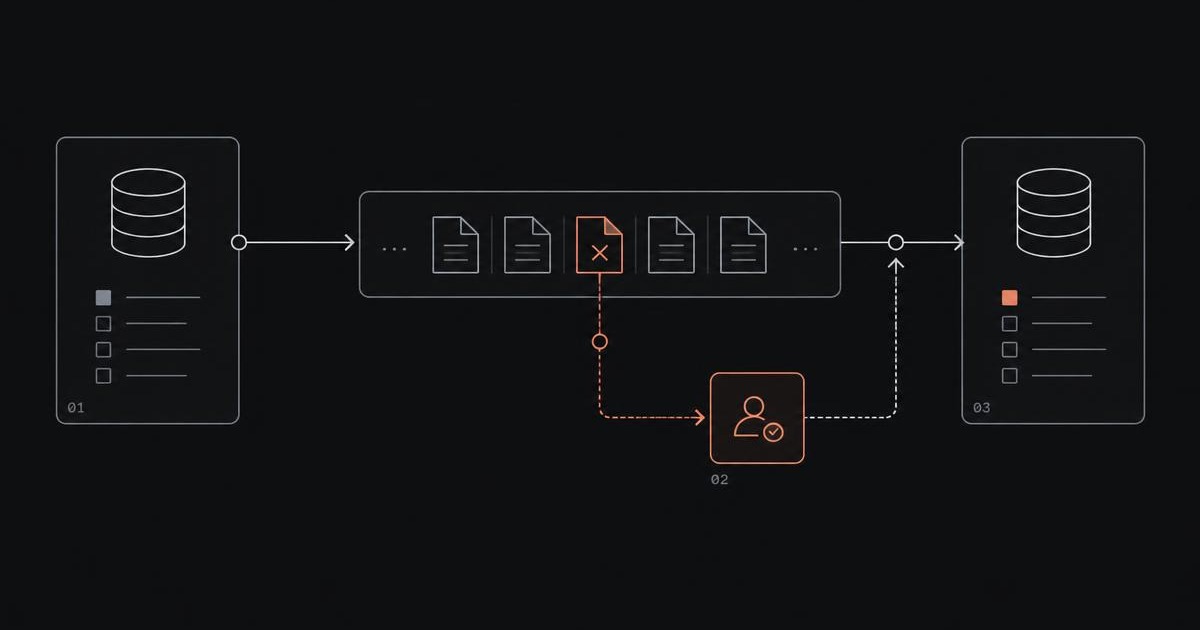
What usually breaks between a CRM and QuickBooks?
Separate the failures before deciding how to recover. Intuit says to parse the response details and distinguishes validation, system, authentication, and authorization faults in its error documentation (opens in a new tab). Keep that detail rather than reducing every response to “sync failed.”
- Bad or missing data: a field is empty, in the wrong format, or sent in the wrong place. Intuit's invoice API (opens in a new tab) says an invoice needs at least one line. That is one requirement, not the whole readiness checklist.
- A reference does not map: the customer, item, tax, or other reference points to the wrong record or to one that is missing or inactive. A matching display name is not proof of the right reference.
- The connection is not authorized: authorization has expired or access has changed. Repeating the same invoice request does not restore permission.
- A retry risks a duplicate: the first attempt may have worked, while a second attempt looks like a new invoice. A retry hidden inside a tool still needs a clear rule.
- A rate limit or timeout interrupts the request: the failure needs classification. A known throttle response is not the same as a lost response with an unknown outcome.
- The write succeeds but the CRM update fails: QuickBooks has the invoice, but the CRM never saves its ID or completion status. Fix the acknowledgment rather than creating another invoice.
Check the target QuickBooks company as well as the record itself. An invoice in the wrong place is not a completed handoff. Keep the source job unchanged while you work out which step needs repair.
Where should you look first?
Follow one job from the CRM event to the invoice request and its response. If the event never reached the connector, inspecting QuickBooks fields will not explain the missing trigger. If it reached QuickBooks, read the returned fault before changing the mapping.
Illustrative ownership table: These are role labels, not assigned people. Replace each with a name in your team and give that person access to the record they need to inspect.
| Symptom | Likely place to inspect | Safe next action | Owner |
|---|---|---|---|
| Missing required data | Source fields and validation response | Collect and validate missing data before another attempt | Job record owner |
| Mapping mismatch | Customer, item, tax, and other references | Have the responsible person confirm the correct reference | Bookkeeper |
| Timeout or no response | Request record and existing invoices | Confirm whether the write succeeded before retrying | Sync owner |
| Duplicate risk | Earlier attempts and saved invoice IDs | Pause new creates and reconcile the records | Bookkeeper |
| Expired connection | Authorization fault and connection access | Restore authorized access, then review pending writes | Connection owner |
Missing inputs should return to the person who can supply them. Do not fill an accounting field with a guess just to clear the queue. If incomplete job records keep causing failures, fix the upstream step with a clean client intake workflow.
Which failures are safe to retry?
A retry is a decision about a specific failure, not a universal response to a red icon. Missing data needs correction. A wrong customer reference needs a confirmed mapping. An expired connection needs restored access before pending writes are reviewed.
Intuit documents HTTP 429 throttling and says to wait 60 seconds before retrying that request in its limits and throttles guide (opens in a new tab). That guidance applies to the throttle response. It does not mean every failed invoice should be sent again after the same delay.
Set a stopping rule for repeated failures. Keep the retry status visible and route a request that keeps failing to its owner. Do not let several tools independently retry the same job while each assumes it is the only one doing so.
Intuit recommends request IDs for writes. If the same request is resent after a lost response, the same request ID can prevent a duplicate, as described in its request ID documentation (opens in a new tab). Check whether your connector preserves that ID on a resend. Do not assume an invoice number or a CRM job ID automatically serves the same purpose.
What if the request timed out after QuickBooks accepted it?
This is the edge case worth testing before launch. QuickBooks may accept the write, then the response may be lost. The CRM sees no confirmation, even though the invoice exists. Blindly sending a new create request can turn one missing reply into two invoices.
Illustrative recovery pattern: Mark the outcome as uncertain and preserve the attempt record. Keep enough detail to connect the source job to the request without copying credentials into a log.
- CRM ID: the stable source job or invoice record.
- QuickBooks request ID: the ID used for this write, plus the target company.
- Payload version: which version of the invoice data was sent.
- Error or response: what the tool received, or an explicit note that no response arrived.
- Status: what is known now, who owns the review, and what decision was made.
Confirm whether an invoice exists before retrying. Match it to the source record using the identifiers your workflow stores, not just a customer name. If the match is uncertain, leave it for review rather than treating a search result as proof.
If the invoice exists, record its QuickBooks ID in the CRM and repair the missing acknowledgment. If the write did not succeed, the owner can authorize the next attempt under the agreed retry rule. Changed invoice data is not the same request, so keep its version and outcome separate from the earlier attempt.
Who owns the exception queue?
Give every unresolved invoice one named owner. A shared inbox is a place to see work, not an assignment. Agree who covers that person when they are away and how the backup receives the records and open decisions.
Illustrative queue: These states keep the next action visible. Adapt them to your team, but do not mark a job complete just because the automation finished running.
- Sync needs review: the outcome is uncertain or a person must decide how to proceed.
- Retry pending: the failure is understood and another attempt is approved.
- Correct data: a named person must fix an input or mapping before the write continues.
- Confirmed complete: the invoice exists and its link and status are recorded in the CRM.
n8n documents error workflows that run on an execution failure and can send alerts (opens in a new tab). An alert can bring the record to the owner. It does not decide which customer, item, or tax reference is correct.
The automation may flag and route the failure. It should not silently guess how to repair accounting data. Keep the decision beside the record so the next person can see why it was corrected, retried, or left open.
What does the status page actually tell you?
Intuit's live developer status dashboard (opens in a new tab) shows API and webhooks status. Check it when several requests fail in a similar way. Treat it as a service-level check, not a substitute for your specific error record.
A healthy dashboard does not prove that a CRM event fired, that a mapping was valid, or that this invoice was accepted. An incident also does not prove every pending write failed. Preserve each outcome and reconcile uncertain writes when service is available.
Can Zapier or a connector handle this?
It may be enough. Evaluate the specific connector and workflow, not just the product name. Can it check inputs, expose the response, preserve the identity of a retry, and hand an uncertain outcome to a person? Test those behaviors before trusting automatic invoice creation.
A connector that handles the normal path but hides failed attempts may still need a review queue around it. Custom work becomes a question when the required checks or recovery steps cannot be expressed or observed reliably in the existing setup. One failed invoice alone is not a reason to replace everything.
For planning the boundary, read what a sensible automation scope includes. Our business system integration work covers connecting tools with validation, visible exceptions, and an owner for failed handoffs.
Common questions
- Can Zapier or a connector handle this?
- It may be enough if the workflow can validate inputs, preserve request details, handle failures, and show a named owner what needs review. Check the specific connector's behavior rather than assuming every retry is safe. Custom code is not required just because an invoice failed.
- What if QuickBooks is up but the invoice is still missing?
- Check the specific execution, the target company, the customer and item mappings, and the response. A healthy status page does not prove that your invoice was accepted. If the response was lost, check for an existing invoice before creating another.
- Should we retry every failed invoice automatically?
- No. Missing data and mapping errors need correction, expired authorization needs an authorized person, and an uncertain write needs a check for an existing invoice. Retry only when the failure is understood and the retry will not create a second invoice.
What should you bring for a workflow review?
Bring one invoice workflow and a redacted failed attempt if you have one. Show where the job starts, what the connector sends, and who checks the result. We can look at the missing handoff before deciding whether it needs a process change or new code.
Let’s work through it